Friday, 7 April 2017

OLD MAN TO YOUNG MAN


The above image is the image used which was gotten from VLE.

     Using healing brush tool, I alt clicked on the 

smooth part of the face to select the area then 

clicking on the wrinkled area a little at a time to 

remove the wrinkles and apply the smoothness.


To make the hair darker, I duplicated the background layer by clicking layer > duplicate layer. On the new layer, I clicked on image > adjustment > replace colour. By clicking on eyedropper tool (+) to select the area which I will like the colour to be applied and selecting it on the image which turn the area to white in the preview. Then clicking on the result to select the colour to apply which adjusted the hue and saturation. Then click okay to close.


By adding a mask to the layer and using soft black 

brush to erase the remaining part except the hair I was able to achieve this image on the right

RETOUCHING 2

 Got the same picture as previous. Using spot healing brush make it possible to remove the spots on the face. After which healing brush was applied. To apply the healing brush, after selecting the brush alt click on the smooth path of the face then start clicking on the face to apply it. I then choose a soft brush and colour of my choice to apply lipstick on the lips.


    Seeing that the colour is too bright on the lips, I selected soft light from the colon beside opacity to give it this amazing lip colour. 


The same process as above was repeated for the 

eyebrow to achieve this 

RETOUCHING


The image used was gotten from VLE.


Firstly, after upload, I duplicated the background 

layer twice by clicking control J. I closed the layer 

visibility for layer 1 copy and make the layer 1 and 

background layer visible. Then selecting layer 1, I 

clicked on filter > blur > Gaussian blur to set the 

radius to 1.8 then make layer 1 copy visible and 

selecting it.


After selecting layer 1 copy, by clicking on image > apply image and setting the layer to layer 1, blending to subtract, leaving scale and offset as it is, I then clicked ok.
Selecting layer 1 again and using lasso tool to select small area of the forehead, then filter > blur > Gaussian blur to increase the radius a little more to 3.3 from 1.8, the area was fine tuned and made clear of blemish. Selecting the face randomly and repeating the process by clicking on Gaussian, I was able to achieve the image on the right hand side.
Using this method make the face looks a bit fake. Which make me to decide to use another method and compare the two images. See you in the next practice. 

Wednesday, 29 March 2017

LOGO USING PHOTOSHOP


For the love shape, I used adobe illustrator. Rounded 

rectangle with the width set to 29.99, height 15.58,

round corner 10, I made a shape then copied to 

make another of the same size. Placed them vertical 

and horizontal on top of each other as seen here.


Rectangular tool was used to draw a rectangle at the 

base of the love to give it a pointed base as seen. I 

used adobe illustrator so as to be able to edit it 

without it losing it's value.


Selecting them together and using unite from 

pathfinder I was able to get a love shape. Then 

repositioned.


Next is copied and paste from illustrator to Photoshop then merged with the written text. I first placed the love shape parallel in between the text but did not look good to me so I decided to place it vertically with the text then merge together.

To make a complete logo, I placed the merged text with the shape on a blue background then got the cutlery image from the web (http://static.petersofkensington.com.au/images/ProductImages/465839-Zoom.jpg) and placed beside the text after resizing.

Friday, 24 March 2017

GRADIENT/BLENDING


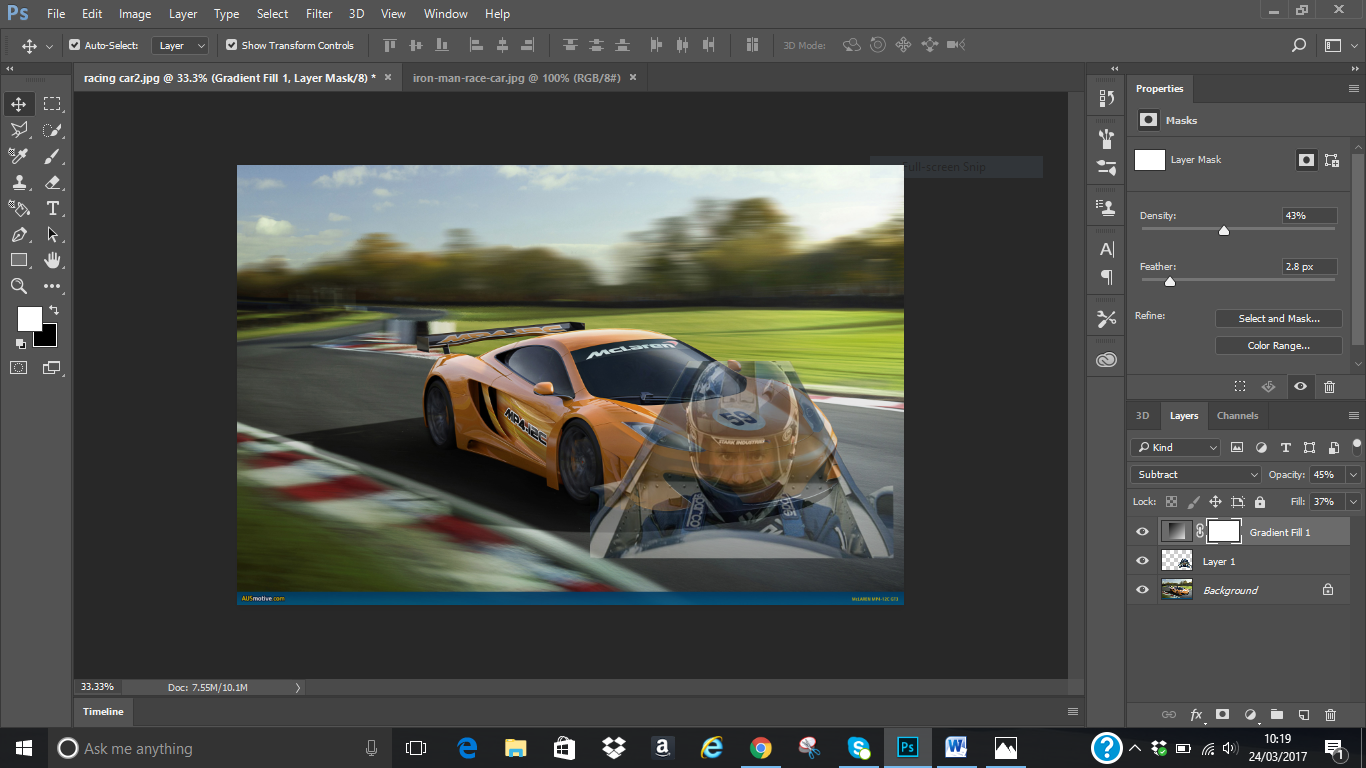
This image on the right was achieved in class. So I thought I should be able to do it on my own. Which I give a go.


Got the two pictures I intend using to practice how to use gradient tool. I used polygonal lasso tool to select the man, copied and paste on the car I intend using. The man picture was very small with these measurements: W=19.23cm, H=11.29cm, X=25.65cm, Y=17.64cm so I increased it to: width=32.14cm, height=20.88cm, X=37.29cm and Y=20.74cm. X and Y are for the position while width and height are the size of the picture.  I used this measurement seeing that the man’s picture is big enough to be used without losing or causing the picture to lose its quality.


Clicking on create new fill or adjustment layer on the right hand side bottom gives me assess to gradient. The opacity was set to 45%, fill 37%, density 43%, feather 2.8px, for  blending mode for the layer I used "subtract" because it gives me the image I like, for pick a filter type I decided to leave it on "kind" after browsing through all. The image is what I was able to achieve. 

Thursday, 23 March 2017

TEXTING (CONTINUATION OF BLENDING)

    The next thing I will be trying to do is to 

change the yellow painting on the UCP building 

(wall and edge) to my desired colour and write 

using text tool on it. 


     I used quick selection tool to select the area I 

will like to change its colour and filled it with 

colour of my choice using brush tool to achieve 

this image. 


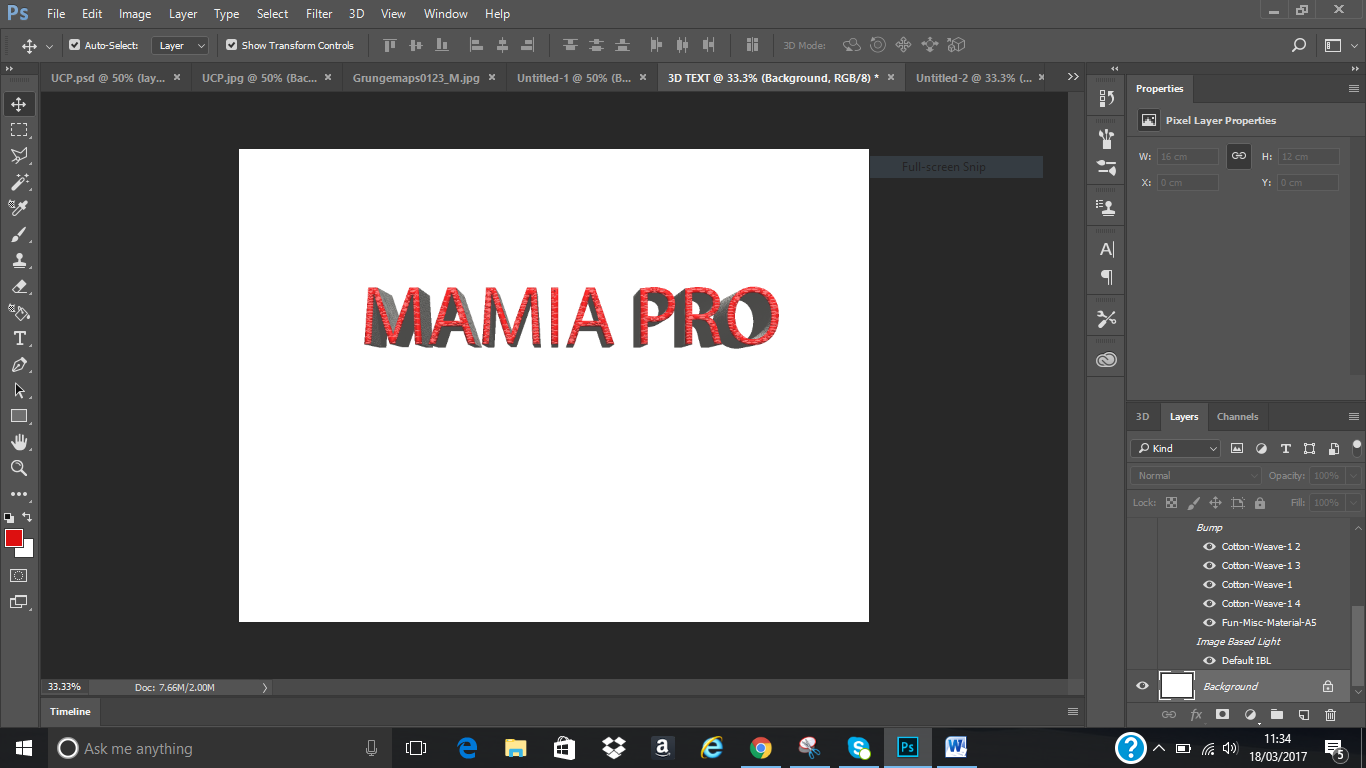
     For the text, after clicking on the text tool, I chose Myriad Pro as text style, 14% as font size then filled with the colour of my choice. I think of using 3D for the text.  I then right clicked on my work layer, clicked on the new 3D extrusion from selected layer. I used the shape Preset on the right side of the Photoshop to select the shape I wanted. I actually browse through all to see the effect on the text before I finally decided to choose inflate then adjusted the text by using extrusion depth which was set to 2cm after checking how the text look like using different figures.


     I played around the text to check how the top, back and sides look like before leaving it on default. I filled the front with fun textured 2(red), reflection was set to 38%, shine 5%, roughness 22% and bump to 10%. Filled the side (pro extrusion material) with fabric denim, back inflation with fabric leather (brown)


     Finally, I clicked on the background layer to 

achieve this image on the right.


Before I was able to achieve the writing on the wall above, I tried some writings to see how I can do it on the wall. These are the practice I did before doing it on the wall.


Before I was able to lay my hand on the writing, I watched tutorial on youtube so as to be able to get how to do the text.

The link to the youtube I watched is given below:
https://www.youtube.com/watch?v=PS-S45Xt-NU


BLENDING (UCP BUILDING)

 I opened a UCP building picture which I want to add 

rough/dirty wall to its’s side (blend). Then opened 

another picture (grungemap) which will be the 

rough wall. I tried to move the rough wall by 

dragging it to the UCP picture page but was unable 

to.


I then selected it, copied and pasted it on the UCP picture to achieve this picture

I selected the rough wall then checked the show transform controls on the menu bar to resize the wall to fit the side of the building picture after which I reduced the opacity to 59% to be able to see through.


Then, I clicked on switched between free transform and warp modes on the task bar to be able to resize to fit in the side of the building wall. When I can see that it fit perfectly well, I checked the tick sign beside the free transform and warp mode to achieve this: